
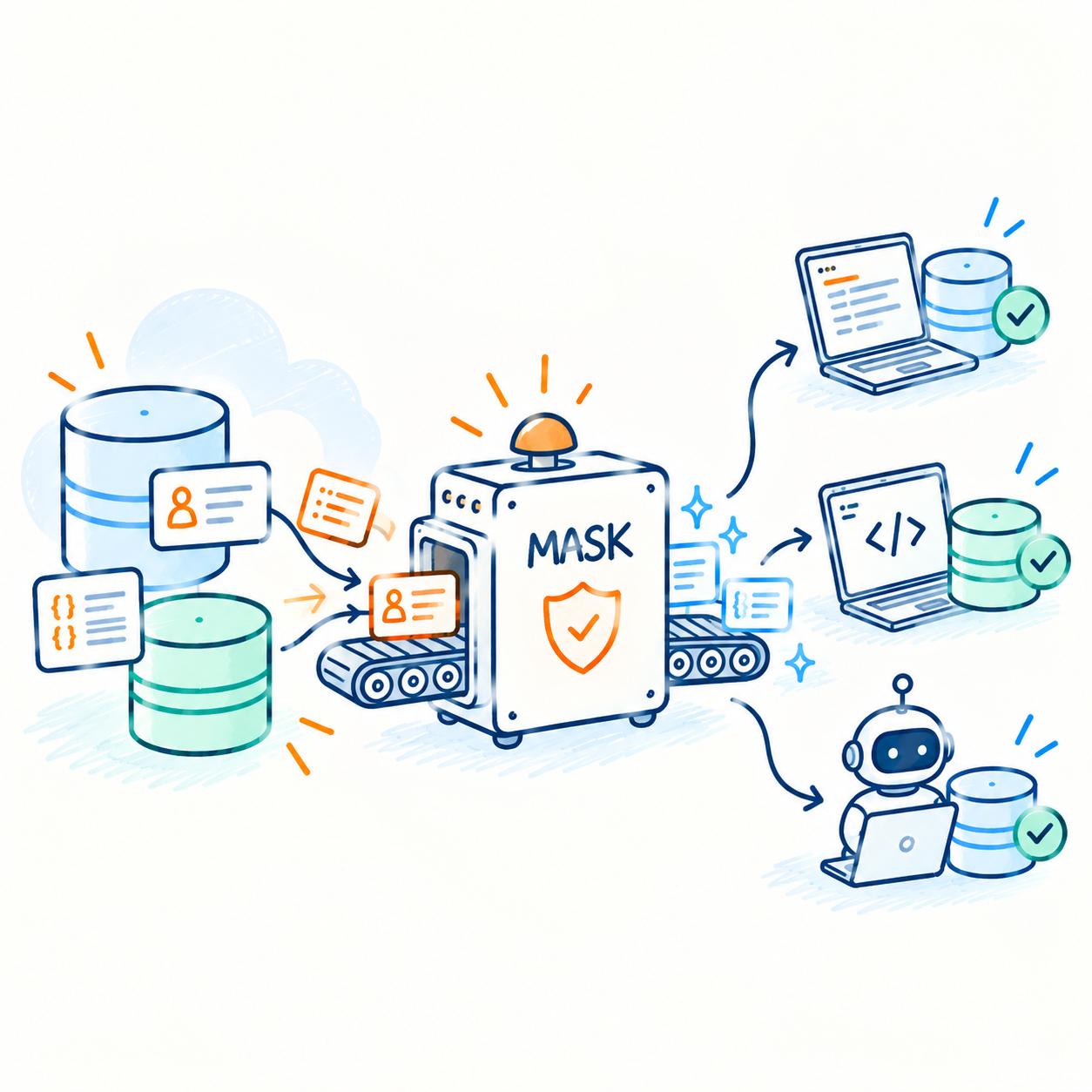
Production data rarely lives in one database. You might keep application data in PostgreSQL while events or other services use MongoDB.
When you create development environments from production data, copying the databases is only part of the problem. Sensitive data needs to be removed, and values shared across databases still need to match.
For example, the same user might appear in both:
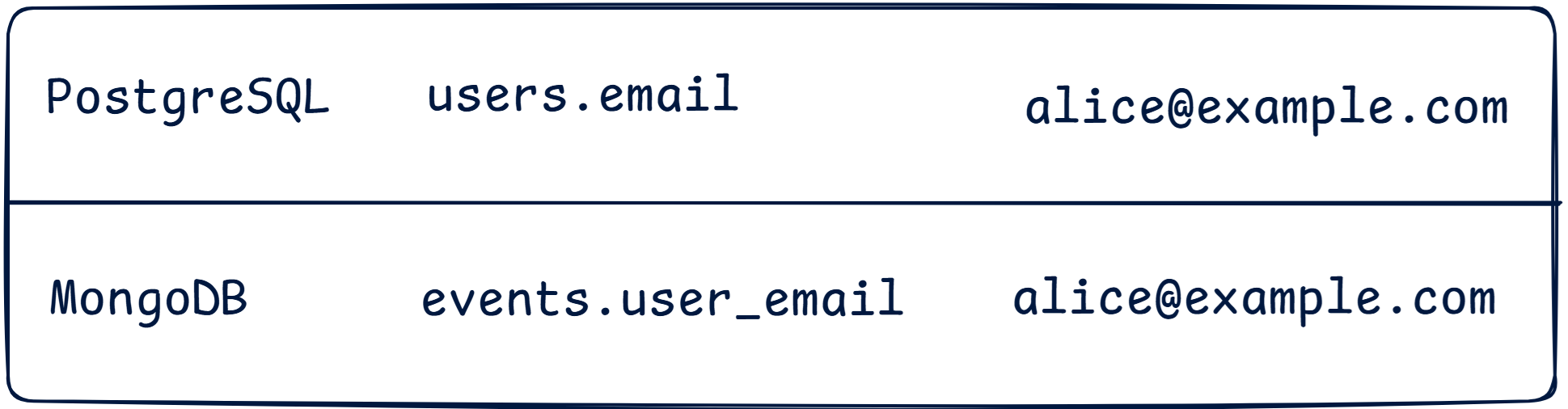
You can mask each database independently, but if the transformations don't match, you've broken the relationship between them. The same applies within a single database, where the same email might appear in users, invoices, and an audit log.
A deterministic transform solves that part. The operational work is everything around it: finding sensitive fields as schemas change, maintaining masking logic across database types, and applying it every time you need fresh development data.
In this guide, we'll use Baseshift to create masked snapshots of PostgreSQL and MongoDB running on DigitalOcean, while keeping shared values consistent across both. From these snapshots developers, coding agents and CI/CD pipelines can spin up writable, isolated clones for development and testing.
Before you begin, sign up for a free Baseshift account and create an organization. You'll need an organization before you can authenticate and use the Baseshift CLI.
We'll use:
- DigitalOcean Managed Databases
- DigitalOcean Kubernetes (DOKS)
- DigitalOcean Container Registry (DOCR)
- The Baseshift CLI
What we're building
Suppose a B2B application has two production databases:
- PostgreSQL for organizations, users, and application data
- MongoDB for events
The same workflow also works with DigitalOcean Managed MySQL.
Baseshift runs the components that access and copy the databases inside your DOKS cluster:
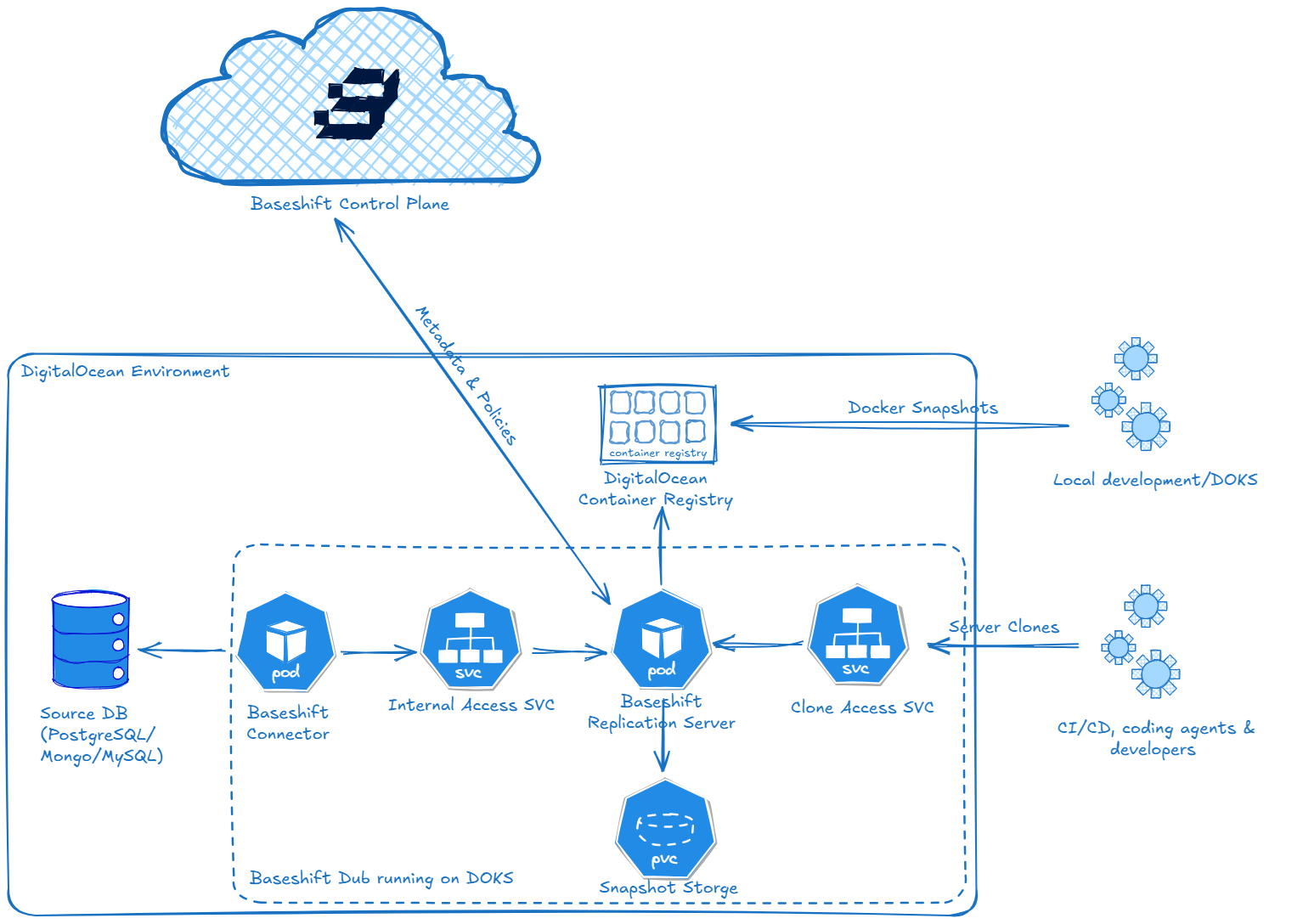
Baseshift's control plane manages your configuration and policies, while the data components that actually access and copy the databases run inside your own DigitalOcean environment. Your data never leaves your network - only configuration, policies, and metadata are exchanged with the control plane.
To follow along, you'll need a DOKS cluster with kubectl and helm configured, DigitalOcean Managed Databases, and the Baseshift CLI.
1. Connect your databases
Create a dedicated database user for Baseshift for each source database. For PostgreSQL, DigitalOcean requires read access to be granted explicitly:
Then create a Dub using the Baseshift CLI. A Dub is a copy of your database with your masking and subsetting policies applied. If you don't want the snapshot process reading from your primary database, you can point Baseshift at a DigitalOcean read-only node instead.
For PostgreSQL:
Repeat for MongoDB, updating the connection parameters for your MongoDB instance.
For each Dub, the CLI generates a values.yaml containing the configuration needed to run the Baseshift data components in your cluster. Update the generated file with your container registry configuration and encryption password, then run the Helm commands printed by the CLI to complete the deployment.
If your DigitalOcean databases use Trusted Sources, allow the DOKS cluster running Baseshift to connect to them.
Once connected, Baseshift validates the database configuration and collects the schema.
2. Mask data consistently across databases
Now consider a user stored in PostgreSQL:
The MongoDB event stream also contains their email:
Developers don't need the real email address. But they may need to query a user in PostgreSQL and find that user's events in MongoDB. Baseshift can scan the databases for PII and create masking policies automatically, or you can define the policies yourself. For this example, we'll define them directly.
For PostgreSQL:
And MongoDB:
Apply them from the CLI:
Baseshift applies masking consistently across databases, so the same source value maps to the same masked value in both PostgreSQL and MongoDB without maintaining a separate masking pipeline for each database type.
If you don't need the full production dataset, you can also apply subsetting policies to reduce the data included in each snapshot - for example, keeping only specific organizations or excluding large historical tables.
3. Create development snapshots
Since our development environment includes both PostgreSQL and MongoDB, we can group the two Dubs into a Data Environment:
Then trigger coordinated snapshots for both databases:
This creates coordinated snapshots of the databases in the environment, with your masking and any subsetting policies applied.
You can also create a snapshot for an individual Dub when you only need to refresh one database:
Snapshots can be created on demand or on a schedule, giving development environments fresh production-like data without maintaining long-lived database copies.
4. Use the snapshots for development, CI, and coding agents
Once you have a masked snapshot, there are two ways to create writable database clones from it. You can use either option, or both for different workflows.
Local clones
For local development, Baseshift packages the snapshot as a Docker image and stores it in DigitalOcean Container Registry.
Developers can pull and run a clone with:
The same images can be used by workloads running in DOKS.
Server clones
For temporary environments, CI/CD pipelines, and coding agents, you can instead start an isolated server clone:
Server clones run in the Replication Server pod. They are isolated, writable and are managed by Baseshift - idle clones are torn down automatically, and every clone is auditable.
Because clones share the underlying storage rather than duplicating the full database for each environment, you can scale out isolated environments without scaling storage costs with every clone.
From here
Once the initial setup is complete, developers, coding agents, and CI/CD pipelines can create isolated database environments from fresh, masked production data without accessing the production databases directly.
You can use local clones for portability, server clones for fast, self-service environments that can keep up with developers and coding agents, or both for different workflows.
Get started for free or see the Baseshift documentation for the full configuration options.